
Every dealer has a pile somewhere. A tray on the desk, a folder in the inbox, a carrier bag in the office drawer. Valeting bills, smart repair invoices, parts receipts, an alloy refurbisher's handwritten-looking PDF, the V5C for the vehicle you bought on Tuesday. Piles like that are what the AI document reader in the Vehiso DMS is for.
They all need typing in. And the typing is never just typing.
Take one bill from your smart repairer. It covers three vehicles: a full valet on one, a rear bumper on another, two alloys on a third. To file it properly someone has to split the lines, find each registration in your stock, put each cost against the right vehicle, check the VAT and make sure it all adds up to the total at the bottom.
So it waits until Friday afternoon. Or the end of the month. Or it gets filed as one lump under "prep" and never reaches the vehicles at all.
That last one is the expensive mistake. A £220 bumper repair that never lands on the vehicle it was done on makes that vehicle look £220 more profitable than it was. Do that across a month of stock and your margins are a guess.
The AI document reader takes the typing out of it, while leaving the deciding with you.
What it does
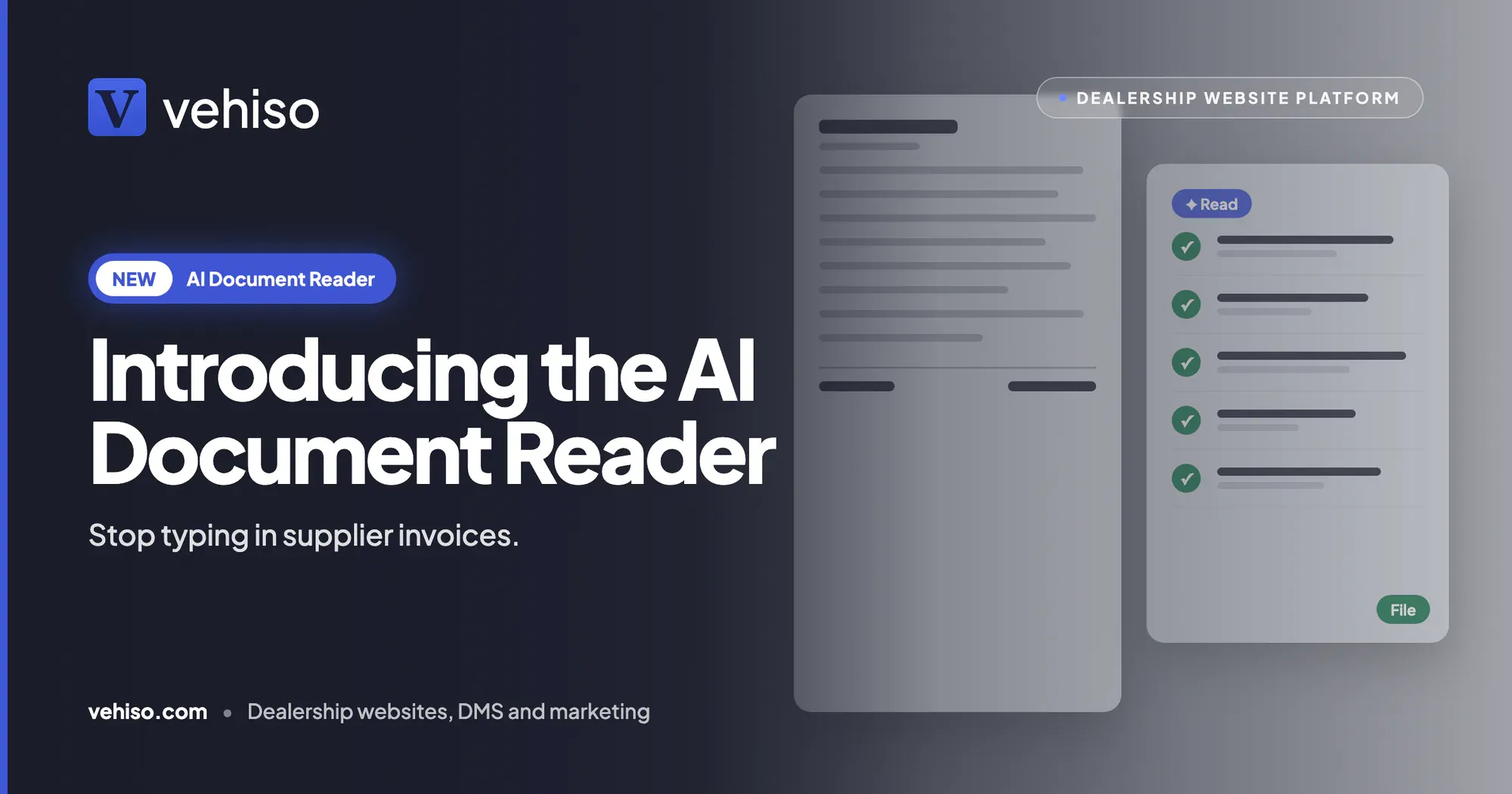
You send in a document. AI reads it, matches it to the right vehicle by its registration and to your suppliers, and lays it out beside the original in the Vehiso dealer management system. You check it, press File, and the costs land on the vehicle and in your accounts without any typing.
It lives under Administration in the DMS, with a Read a document button on Expenses too.
Three steps, from pile to filed
1. Send it in. Drag in a PDF or a photo taken on your phone, several at once if you like. Or forward the supplier's email to your dealership's own document address.
2. AI reads it. The supplier, reference, dates, each line, the VAT and the totals are read for you. Each line is matched to a vehicle in your stock by its registration, and the supplier to the ones you already use.
3. You check and file. The original sits beside what was read. Change anything that needs it, press File, and each line goes where you chose.
Back to that three-vehicle bill. It comes in as a preparation bill from your valeter, £660.00 including VAT. The full valet is matched to AB12 CDE, the bumper to KX19 TFA, the alloys to LM68 PRT, each as a cost on a vehicle. The supplier shows as matched. A note confirms the lines add up to the printed total. You look it over and press File.
The paperwork a dealership actually gets
It handles common UK supplier invoices, whatever their layout, plus the V5C.
Vehicle purchase invoices. Set the purchase price on the vehicle you bought, so its profit is right from the day it arrives.
Preparation bills. Valeting, smart repair, paint and alloy work, each line put against the vehicle it was done on, even when one bill covers several.
Parts invoices. Parts bought for a vehicle are added to its costs, and anything else can be filed as an overhead.
V5Cs. The document reference, VIN, first registration date, colour and previous keepers are offered as updates you tick one by one. Nothing on the vehicle changes unless you tick it.
General supplier bills. Bills that are not for a vehicle, such as utilities or advertising, are filed as overheads under the category you choose.
Documents can be a PDF or a photo (JPG, PNG, WebP or HEIC). A photo taken on a phone is fine, as long as the text is readable.
Email it in
Each dealership has its own document address, shown in the DMS.
Forward an invoice to it, or give it to your suppliers so they send bills there directly. Every attachment appears in the reader, waiting for you to check. Logos in an email signature are ignored, so you are not checking a pile of tiny images.
If the address gets passed around more than you would like, you can replace it with a new one.
Nothing is filed until you say so
AI does the reading, not the deciding. Every document waits on the review screen until someone in your team has checked it and pressed File. Nothing reaches a vehicle's costs, your expenses or your accounts before that.
On the review screen:
- The original is shown next to what was read, so checking takes seconds rather than a hunt through a PDF.
- Every field can be changed: the supplier, dates, each line, the vehicle, the category and the VAT.
- You choose where each line goes: a cost on a vehicle, the vehicle's purchase price, an overhead, or not filed at all.
- You are warned when the lines do not add up to the printed total, or a registration is not in your stock.
- A new supplier can be added to your supplier list as you file.
If a registration is missing or not found, the line is flagged and you choose the vehicle yourself, or file it as an overhead instead.
Straight into your accounts
Costs and overheads are filed as expenses. With Xero, QuickBooks or Sage connected through the accounting integrations, each one goes across as a supplier bill, just as if you had typed it into Vehiso yourself.
So one press of File does three jobs: the vehicle's costs are right, the overhead is recorded, and your accountant sees the bill. If you want the fuller picture of how that works, our posts on Xero and QuickBooks for car dealers and accounting and MTD for car dealerships cover it.
Where it fits
The document reader is the front door to a few other parts of the DMS.
What it files ends up in expense management, where every overhead sits with its receipt and VAT, and costs put against stock vehicles count against their profit. Prep costs it puts against a vehicle show on that vehicle's card on the Preparation board. And for why getting reconditioning costs onto the right vehicle matters so much to your margin, read in-house prep costs and vehicle margin.
On the other side of the ledger, the invoices you send out live on the new Invoices page.
Who can use it
Anyone with the Expenses permission can upload, check and file documents. Setting a vehicle's purchase price, or updating a vehicle from a V5C, also needs permission to manage stock. So the person who files the valeting bills does not automatically get to change what you paid for a vehicle.
A few honest limits
It reads, you decide. Nothing is filed until someone checks it and presses File. That is deliberate, but it does mean someone still needs to look at every document.
It needs the registration. Lines are matched to vehicles by the registration on the document. If a supplier leaves it off, you choose the vehicle yourself.
The text has to be readable. A phone photo is fine, as long as the text is readable. A blurred or badly lit one is worth retaking.
V5C details are offered, not applied. Nothing on the vehicle changes until you tick each update.
Sending to your accounts needs the integration. Without Xero, QuickBooks or Sage connected, costs and overheads are still filed as expenses in Vehiso, but they do not go across as supplier bills.
Which plan it is on
The AI document reader is included on every paid Vehiso plan, from £49 a month, alongside the other AI features, with no charge per document. It is not on the Free plan. You can switch it off under AI features in the DMS at any time.
The full plan comparison is on the pricing page.
If there is a pile of invoices waiting for Friday afternoon right now, that is the one to start with. Have a look at the AI document reader and let it read your next supplier invoice.