
A buyer rings about a car. They are keen, they have the money, and they found it on your website. Then, almost as an afterthought, they mention they looked for it on one of the portals first and could not find it there. Stock feed management in the Vehiso DMS is built to stop that happening.
You check. It is not there. It has not been there since you took it in.
Nobody switched it off. Nothing flashed red. It just never went out, and the only reason you know is that a buyer happened to tell you.
That is the quiet cost of advertising on several channels. Each one is another place to log into and check, and most dealers do not have time to check them all every day. So problems sit there unnoticed until the car has been on the forecourt for three weeks and nobody is quite sure why the phone is not ringing about it.
Stock feed management is built to end that.
One place for every channel and advert
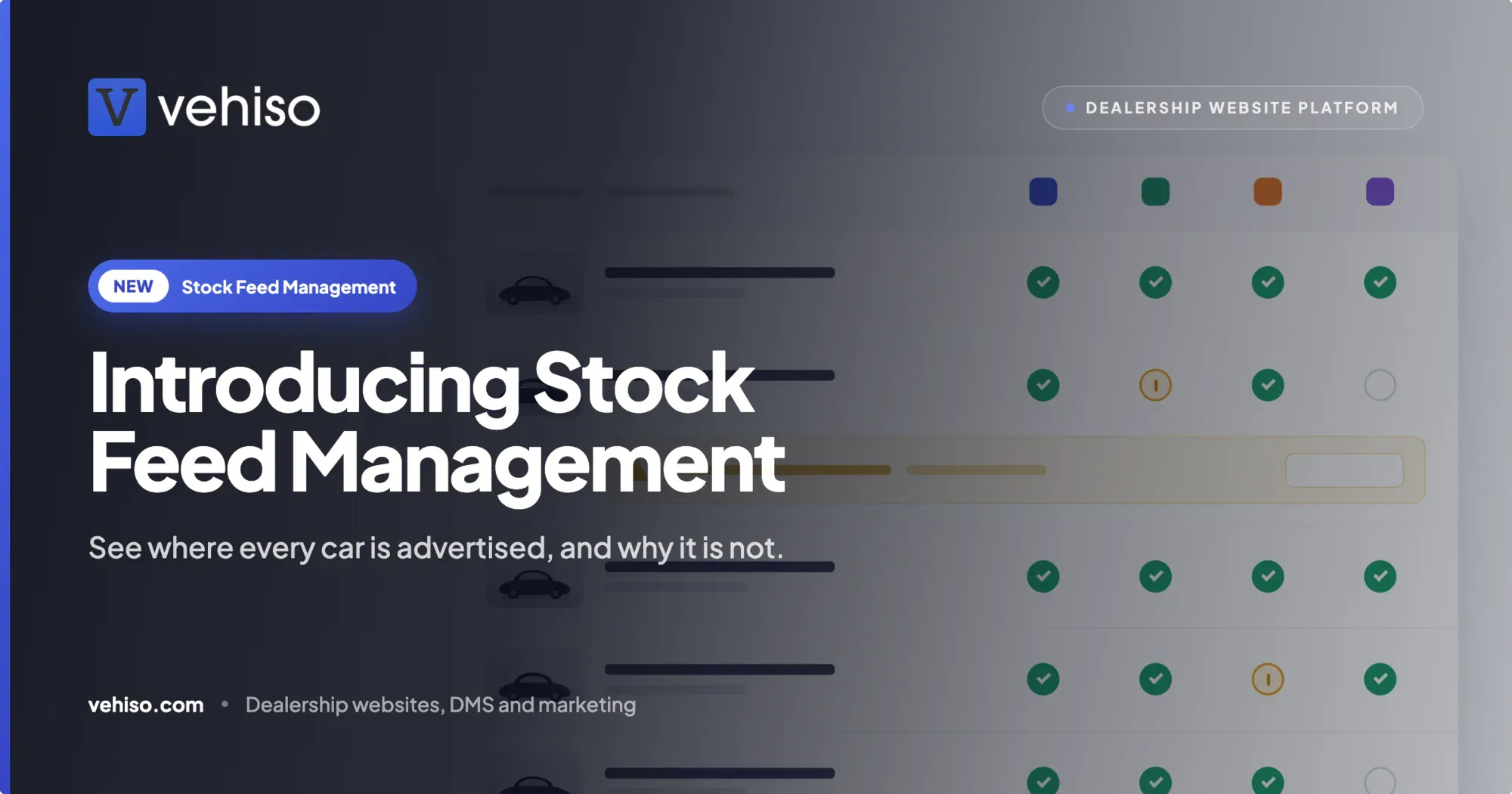
For every car, you now see its status on every channel you use, with the reason in plain words whenever something is stopping it.
It is built on the stock feeds you already have in Vehiso. You still add a car once, and it still goes to your website and your channels from the same stock record. What is new is that you can see what happened next, and fix it before a buyer notices a gap.
The channels it covers:
AutoTrader. Kept in sync live. If AutoTrader rejects an advert, or your advert allowance is used up, you see it on the car.
CarGurus. Your stock goes out on each scheduled send, and every car shows whether it was included.
Motors. Your stock goes out on each scheduled send, and you can now filter the stock list by Motors too.
Facebook & Instagram. A Meta vehicle catalogue feed for automotive inventory ads, linking back to your own website. This is new, and there is more on it below.
CarFinance247 and ChooseMyFinance. Your stock goes out on a scheduled file feed, with the same per-car status.
Zuto. Your stock goes out from the same stock list, with the same per-car status.
Four statuses, on every channel
Each car has one clear status per channel, so you never have to guess whether it made it.
Live. The car has been sent and is on that channel.
Waiting to send. The car is ready and will be carried by the channel's next scheduled send. Some channels take your stock as a scheduled file feed rather than a live connection, so this is normal, and there is nothing for you to do.
Needs attention. Something is stopping the car going out, and Vehiso tells you what, in plain words, so you can fix it.
Off. The car is switched off for that channel, or it is not for sale.
You see the status as a marker on each channel logo in the stock list, and as a status line under each channel on the vehicle page, along with when the car was last sent. So you can scan the whole forecourt at a glance, or open one car and see its full story.
Know why a car is not live, and what to do about it
This is the bit that changes the daily routine.
When a car cannot go out on a channel, Vehiso holds it back and shows it as needing attention with the reason, rather than letting it fail silently. The reasons you might see include:
- No photos
- No price
- Price on application
- No registration
- No year
- AutoTrader rejected the advert, with AutoTrader's reason
- AutoTrader advert allowance used up
- Channel paused
Most of these are ten-second fixes once you know about them. The car that came in on Friday and got priced but never photographed. The one somebody set to POA while they made their mind up. The registration that was never keyed in because the V5 was in the post.
None of them are hard problems. They are just invisible ones, and invisible problems cost you days of advertising. Fix the cause and the car goes out as normal.
A summary for each channel
The stock feeds settings screen now shows a summary for each channel: how many cars are live, waiting, needing attention and off, the most common problems, and when the channel last took your stock.
That last line is a useful sanity check. If a channel has not taken your stock when you expected it to, you will see it there instead of finding out from a buyer.
Publish in bulk, or let rules do it
You decide what goes on each channel, in whatever way suits how your forecourt works.
Per car or in bulk. Switch a car on or off for any channel from the stock list or the vehicle page, or select several cars and change them together.
Automatic publishing rules. Set auto-publish rules for each channel, so new stock goes where you want it without switching every car on by hand.
Filter by channel. Filter the stock list by channel, including Motors and Facebook & Instagram, to see exactly what is on each one.
A typical setup might be everything on AutoTrader and your website, finance-friendly stock on the finance channels, and a hand-picked selection on Facebook & Instagram. However you slice it, the status view shows you whether it actually happened.
The new channel: Facebook & Instagram
Vehiso now generates a Meta vehicle catalogue feed of your stock, so you can run automotive inventory ads on Facebook and Instagram that show your live stock and link back to your website.
The feed carries each car's price, year, mileage and photos, and a link to the car's page on your Vehiso website. You switch it on in Vehiso, then copy the feed URL into a Vehicles catalogue in Meta Commerce Manager on a scheduled fetch, for example daily. Cars Meta would refuse, such as those with no price, year, mileage or photo, or not on your website, are held back and shown as needing attention, just like any other channel.
One thing to be clear about: this is for catalogue and automotive inventory ads, not Facebook Marketplace listings. Ad spend is paid by you directly to Meta. We have written the full walkthrough in Facebook and Instagram ads for your stock.
A few honest limits
Stock feed management shows you what is happening on each channel. It does not replace your account with each channel. You still need your own account with AutoTrader, CarGurus, Motors, Meta and the rest, and any fees they charge, including ad spend with Meta, are paid to them.
Scheduled file feeds are scheduled. A car marked waiting to send will go on that channel's next send, not the moment you save it. Only AutoTrader is kept in sync live.
And Vehiso can tell you a car is missing its price or its photos, but it cannot take the photos for you. If you want help there, Photo Studio and our guide to taking great photos of cars are the places to look.
Which plan it is on
Stock feed management is part of the stock feeds included in every paid Vehiso plan, from £49 a month, with nothing extra to buy from Vehiso. It works from the stock list you already keep in the dealer management system, with nothing extra to install.
The dealer management system itself is on every plan, including the free one, but stock feeds start on the paid plans. The full breakdown is on the pricing page, and the list of channels is on the integrations page.
If you have ever found out a car was not advertised from a buyer on the phone, this is for you. See how it works on the stock feed management page, switch on the channels you use, and find out which cars need attention today rather than three weeks from now.